User Profile

User Profile

If you need to change either your email address, mobile number or current password this can be done once logged in.
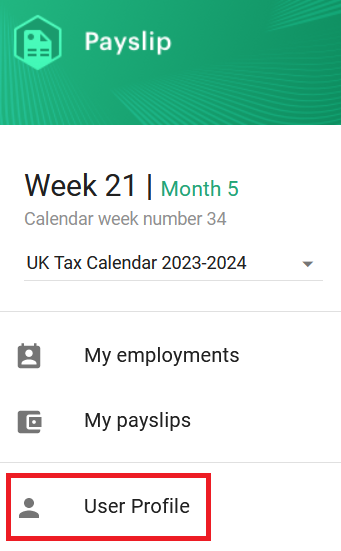
Navigate to 'User Profile' located on the left-hand side


Details
Under the 'Details' tab, you will be able to adjust the following information:
Title, First Name, Last Name, Email and Number.
Once you have adjusted the relevant fields, select the save button located at the bottom of the screen.


Privacy
Within the Privacy tab, you can select how you wish to be contacted about Sargent-Disc products and services.
If you wish to select any of the available options that appear on screen, select the toggle option and select the save button located at the bottom of the screen.


Security
If you wish to change your current password once logged in, you can do so under the Security tab.
When updating your password, you will be required to enter your old password (current one), a new password and confirming the new password.
*Note, you will see the requirements the password needs to have at the bottom of the screen, in order to update your password successfully you will need to make sure all of the requirements displayed on screen have a green tick.


    • Related Articles

    • Accept Payslip invitation with existing Sargent-Disc credentials

      If you already have a Sargent-Disc account and have received a Payslip invitation, you can accept this with your existing username and password by following the steps below: 1. Accept the invitation by clicking on the invite link sent to you via ...
    • Accepting an invitation

      To view your payslips online you will need to create an account, if you already have an existing account but have received an invite for a new employment you will need to accept the invite to view the payslips for that employment. To create an ...
    • Accept Payslip invitation and regsiter for new account

      If you don't have a Sargent-Disc account and have received a Payslip invitation, you can register for an account when going through the invitation process by following the steps below: 1. Accept the invitation by clicking on the invite link sent to ...
    • How to access your P60/ P45

      To access your P60/ P45 you will need to log onto the following website with your username and password: https://payslip.digitalproductionoffice.com/#/login Once logged in you will need to select 'My Employments' from the left hand side (If you are ...